Screenshots show the Korean interface.
At a glance
Three things to remember.
Add one address to your AI tool (Codex, Claude, Cursor and others). See how
Say “deploy this” and the AI uploads it and gives you an address. No commands to remember.
Web pages upload without logging in. To keep them longer or deploy a server app, say “log in to the deploy environment”.
Deploy straight from web chat · ChatGPT · Claude
Nothing to install. Connect the web chat once, and the page made in the conversation goes online with one sentence.
- Connect once. Add the Deploy address to ChatGPT or Claude. Nothing to install.
- Turn it on in the conversation. Connecting alone is not enough. In ChatGPT, type
@in a new conversation and choose Deploy. In Claude, turn Deploy on under + > Connectors in the chat box. - Make something by chatting as usual, for example “make an intro page for our club”.
- Say “deploy this” or “put it on the internet”. The AI uploads it right away and gives you an address. No login needed.
- To keep it, open the link the AI gives you within 15 minutes and log in. The site moves to your account and is kept 30 days instead of 7.
Make an intro page for our club
Done. Take a look at the preview.
Deploy this
Uploaded:
https://happy-cat-392.gensapps.app
To keep it, open the link below within 15 minutes and log in.
- Up to 40 files and 2MB in total per upload. Suited to pages made in the conversation (HTML, CSS, JS and small images).
- Sites deployed without logging in are shown in the gallery and deleted after 7 days. Private sites are available on paid plans.
- Uploading again after a change gives a new address. To overwrite the same address, use an editor such as Codex or Claude Code.
- List and delete uploaded sites in My sites in the browser. Server apps cannot be deployed from chat apps.
- Without logging in, one IP address can upload 10 times a day.
If the AI says it has “no deploy tool” or offers only to write the code, it is not turned on in the conversation. Turn it on as in step 2 and ask again in a new conversation. In ChatGPT the plugin you created must also be installed before it appears in the @ list.
In ChatGPT the connect menu may not be shown depending on plan and workspace settings. Claude allows one custom connector even on the Free plan.
What to say
Just say what you want to do.
| What you want | What to say | Login |
|---|---|---|
| Upload a web page you made | Deploy thisUpload it to GensApps | Not needed |
| Upload again to the same address | Upload it again to that address | Not needed |
| Log in (link your account) | Log in to GenAI LabsLog in to the deploy environment | — |
| Check which account you are using | Which deploy account am I using? | Not needed |
| See the sites you uploaded | Show my sites | Not needed |
| Go back to the previous version | Roll back to the previous version | Not needed |
| Delete a site | Delete this site | Not needed |
| Deploy a server app (Flask · FastAPI · Express) | Deploy this server app | Needed |
| Make it the main page of my address | Put it on the main page of my address | Needed |
You do not need these exact sentences. Plain requests like “upload it” or “make me an address” work. In ChatGPT or the Claude chat app, the page made in the conversation is uploaded directly; list and delete in My sites in the browser.
When you need to log in
Uploading a web page needs no login. Log in for the cases below.
| Without logging in | Logged in | |
|---|---|---|
| Kept for | 7 days after upload | 30 days after last use (restarts each time) |
| Sites | 1 | 3 (more on paid plans) |
| Server apps | Not available | 1 trial demo (Standard for real use) |
| Across computers | Managed only from the computer that uploaded | Everything gathers under one account |
| Management | None | List, delete and roll back in My sites |
Sites you uploaded before logging in move to your account the moment you log in. No need to upload again. See Pricing for limits by plan.
Logging in · on your own computer
For tools running on your own computer such as Codex, Claude desktop and VS Code. One click in the browser.
- Tell the AI “log in to GenAI Labs” or “log in to the deploy environment”.
- Your browser opens. The first time, choose your Google account.
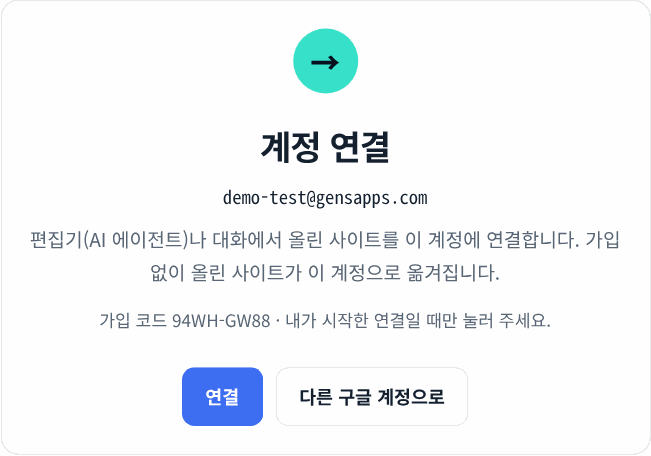
- If your browser is already logged in to Deploy, you see the screen below. Press 연결 (Link).
- When you see “연결되었습니다” (Linked), you are done. Go back to your editor and the AI continues.

Logging in · in a remote environment
For places where no browser can open, such as a server over SSH or a cloud workspace. You copy an address and paste a code.
- Ask to log in the same way. If no browser can be opened, the AI gives you an address.
- Copy that address and open it in any browser, on your computer or phone.
- Log in and press 연결 (Link). A 6-character verification code appears.
- Copy that code and paste it to the AI. When it answers “로그인했습니다” (Logged in), you are done.
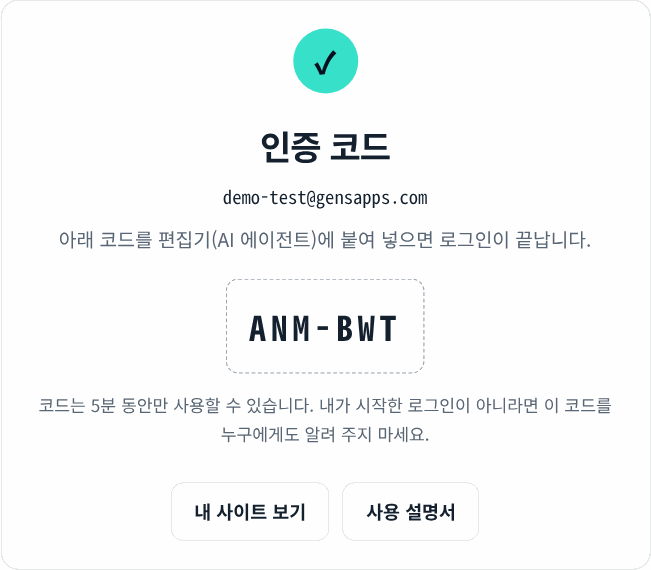
If you did not start this login, do not press Link and do not give the code to anyone. The editor of whoever gets the code is linked to your account.
When you need to log in again
One login keeps working. You log in again only in these cases.
- The first time in a new project folder. Login details are stored in the
.gensappsfolder inside the project. Log in once per folder. - After 90 days without use. A connection is removed 90 days after its last use. If you keep using it, you never log in again.
- After you disconnect it in your profile. That device is logged out immediately.
- After deleting the
.gensappsfolder. The stored login details are gone.
Even when logged out, your sites stay in your account. Just say “log in to the deploy environment” again. To check, ask “which deploy account am I using?”. Do not share the .gensapps folder with anyone.
Managing connected editors
See which devices are logged in to your account, and disconnect them if needed.
- Click your name at the top right and open Profile & settings.
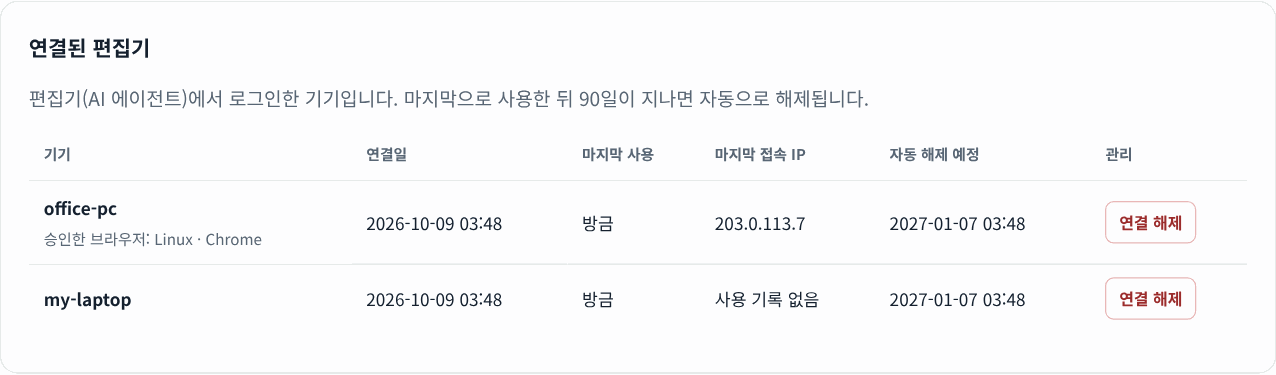
- Under Connected editors you see the devices logged in to this account, with name, connected date, last use and auto-removal date.
- For a device you do not recognise or no longer use, press 연결 해제 (Disconnect). It is logged out immediately.

The My sites screen
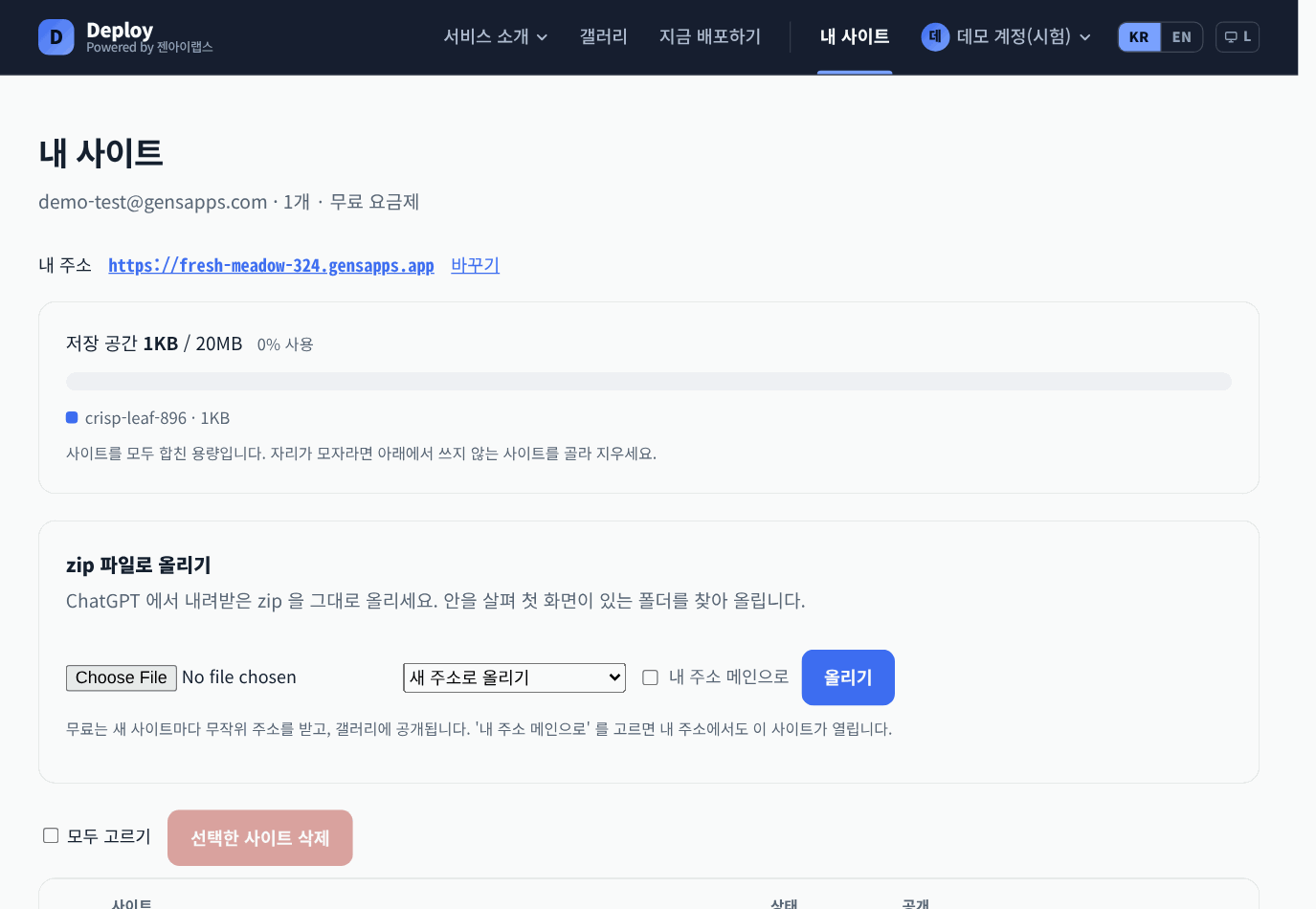
Check on screen what you asked the AI to do.
My sites in the browser shows everything you uploaded: address, time left and storage used. You can delete or roll back here, and upload a zip file directly.
When something goes wrong
Common situations.
It says “You can have up to 3 sites”
That is the free plan limit. Delete sites you do not use in My sites, or move up a plan.
It says “The verification code does not match”
Check the code in your browser and paste it again. If 5 minutes passed or you got it wrong 5 times, start over with “log in to the deploy environment”.
I logged in but it says “Not signed up yet”
You logged in from another project folder, 90 days passed, or the connection was removed. Log in again from the current folder.
The new address does not open right away
A new address takes 1 to 5 minutes to spread. Refresh a little later.
There is a device I do not recognise
Disconnect it right away in Profile & settings. That device can no longer upload or delete under your account.